
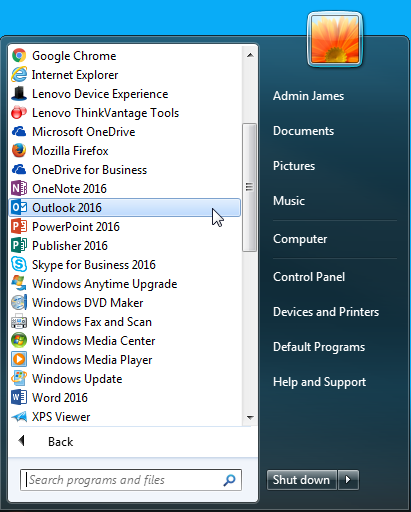
1. Click on the Start Menu and find “Outlook 2016”. You may move this shortcut to your desktop.
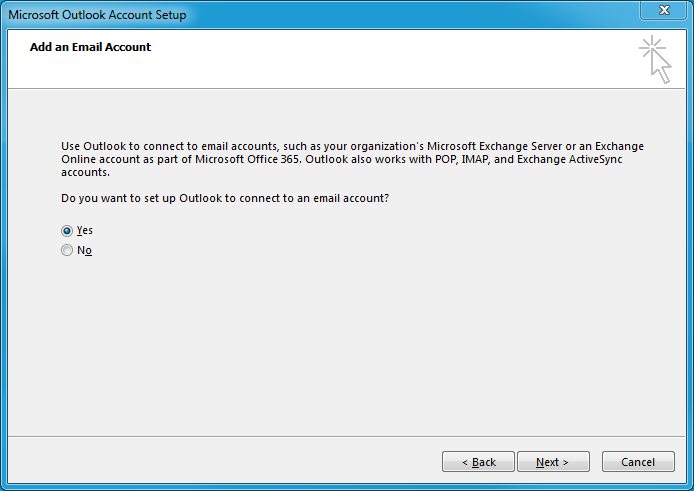
2. On the screen that prompts “Do you want to set up Outlook to connect to an e-mail account?”, select “Yes” and click “Next”.
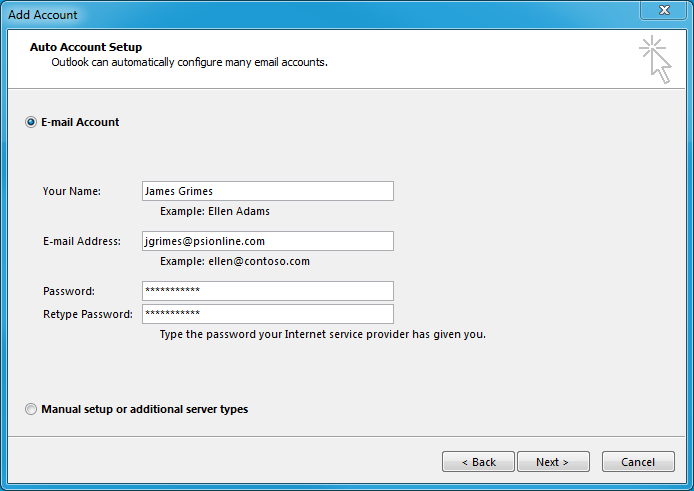
3. On the next screen, your information may or may not already be filled out. If it is not, enter your name, e-mail address, and password. Then, click “Next”.
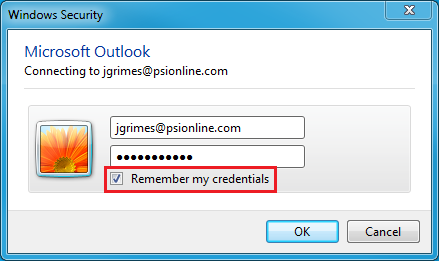
4. Then, a confirmation dialogue will come up. This may come up with your e-mail address @goamp.com instead of @psionline.com. If it does, change it to @psionline.com (i.e. yourname@psionline.com). Enter your password and make sure “Remember my credentials” is checked.
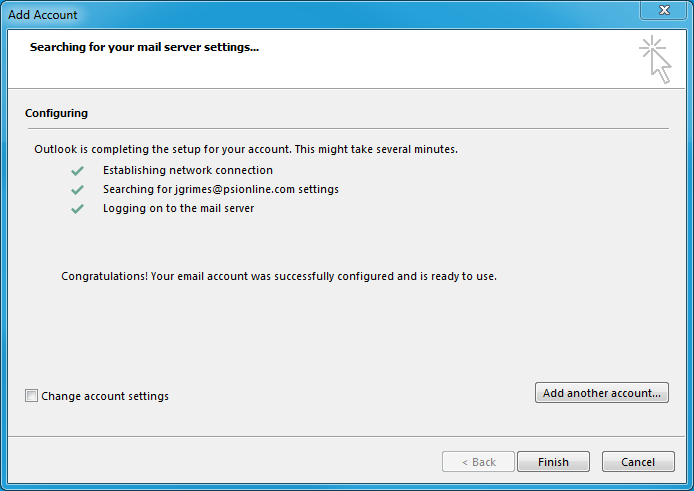
5. On the next screen, click finish.
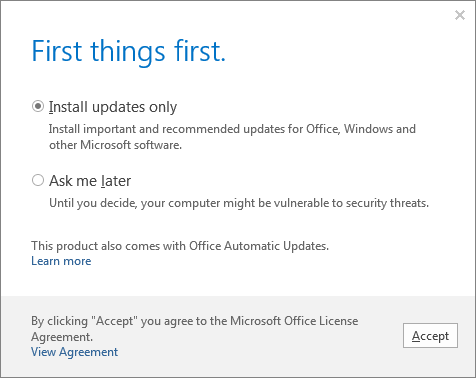
6. Outlook will then open. On the window that pops up, select “Install updates only” and click OK. Outlook should then load your inbox.
My 2 way verification number is missing