
The steps below will show you how to do a O365/Office repair if applications (Outlook, Word, Excel, PowerPoint, etc) are not working properly, application has been closed/relaunched, or PC/Laptop has been rebooted and issue persist. Once steps below are completed, please restart your system.
For Windows 10
- Right-click the Start button (Windows logo) on the bottom left of your screen and select Apps and Features.

- Scroll Down Apps and Features, you will see Microsoft Office 365 ProPlus – en-us. Click to highlight and select Modify.

- There will be 2 options, Quick repair and Online Repair. You can start with Quick Repair, if issue remains, try Online Repair.

- Follow the instructions on-screen to complete the repair. Make sure you save your work before going thru this repair process.
- If the repair process does not resolve issue, please submit a ticket at http://askit.psionline.com/
For Windows 8/8.1
- Right-click the Start button (Windows logo) on the bottom left and click on Programs and Features

- Scroll down till you see Microsoft Office 365 ProPlus -en-us. Click to highlight, towards the top click on Change.
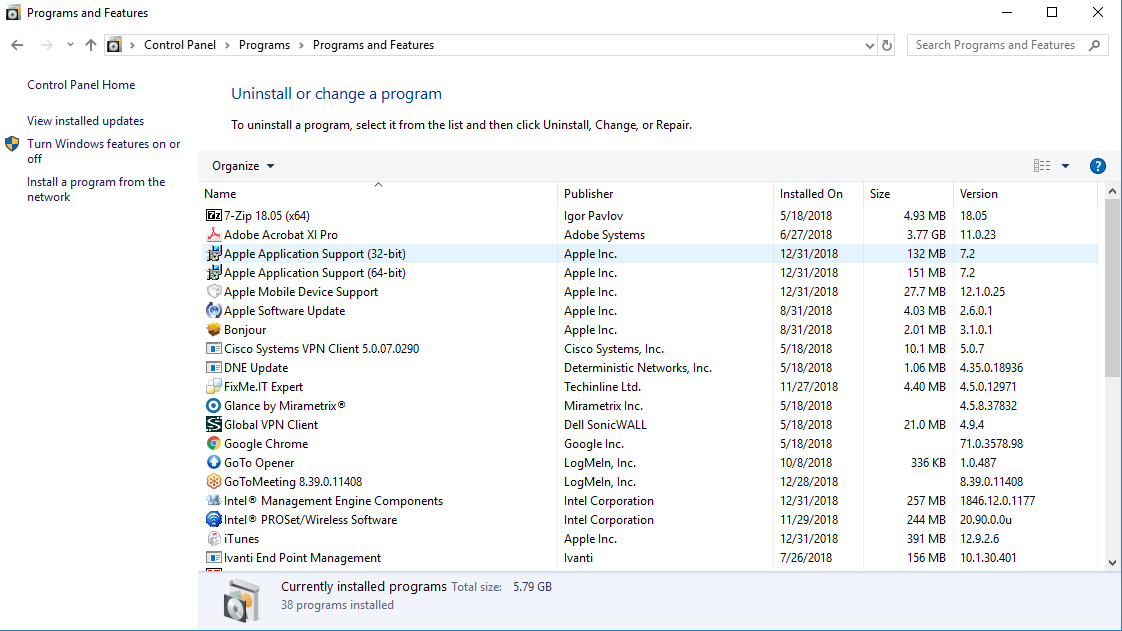
- There will be 2 options Quick repair and Online Repair. You can start with Quick Repair, if issue remains, try Online Repair.

- Follow the instructions on-screen to complete the repair. Make sure you save your work before going thru this repair process.
- If the repair process does not resolve issue, please submit a ticket at http://askit.psionline.com/
For Windows 7
- Click on Start (Windows logo) on the bottom left and choose Control Panel

- Under category view: Under Programs, select Uninstall a Program
Under Larger/Smaller Icons: select Programs and Features.


- Scroll down till you see Microsoft Office 365 ProPlus -en-us, click to highlight. At the top, click on Change.
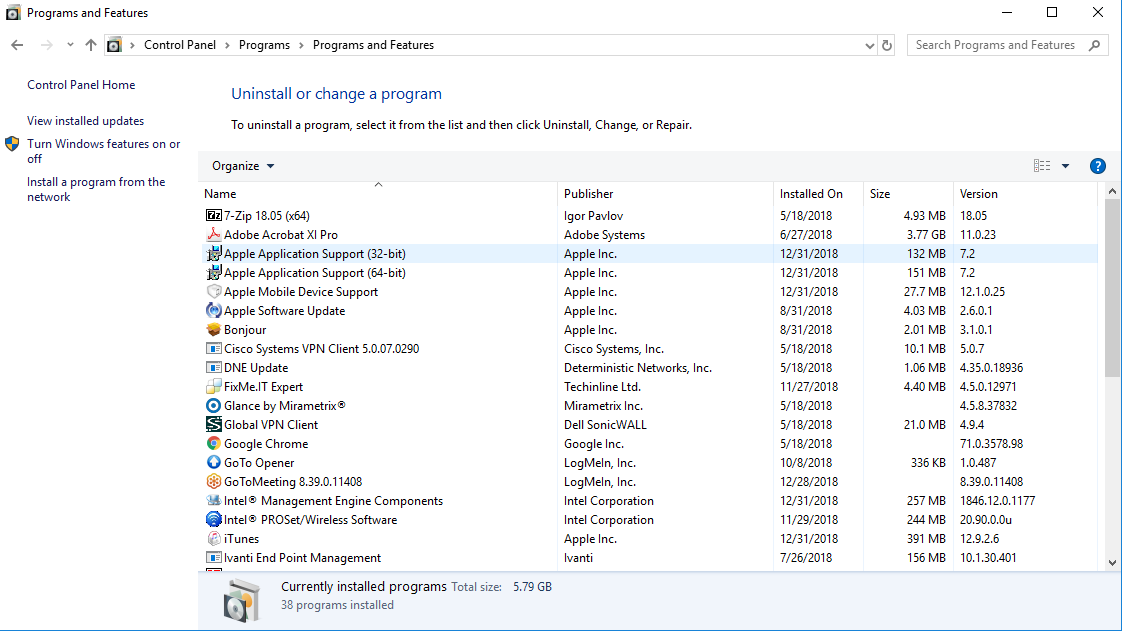
- There will be 2 options Quick repair and Online Repair. You can start with Quick Repair, if issue remains, try Online Repair.

- Follow the instructions on-screen to complete the repair. Make sure you save your work before going thru this repair process.
- If the repair process does not resolve issue, please submit a ticket at http://askit.psionline.com/
Comments