
Create an account
If you have never submitted a ticket before, you will first need to create an account. In the top right corner of the screen, click on "Sign In". Then, select "Sign Up".
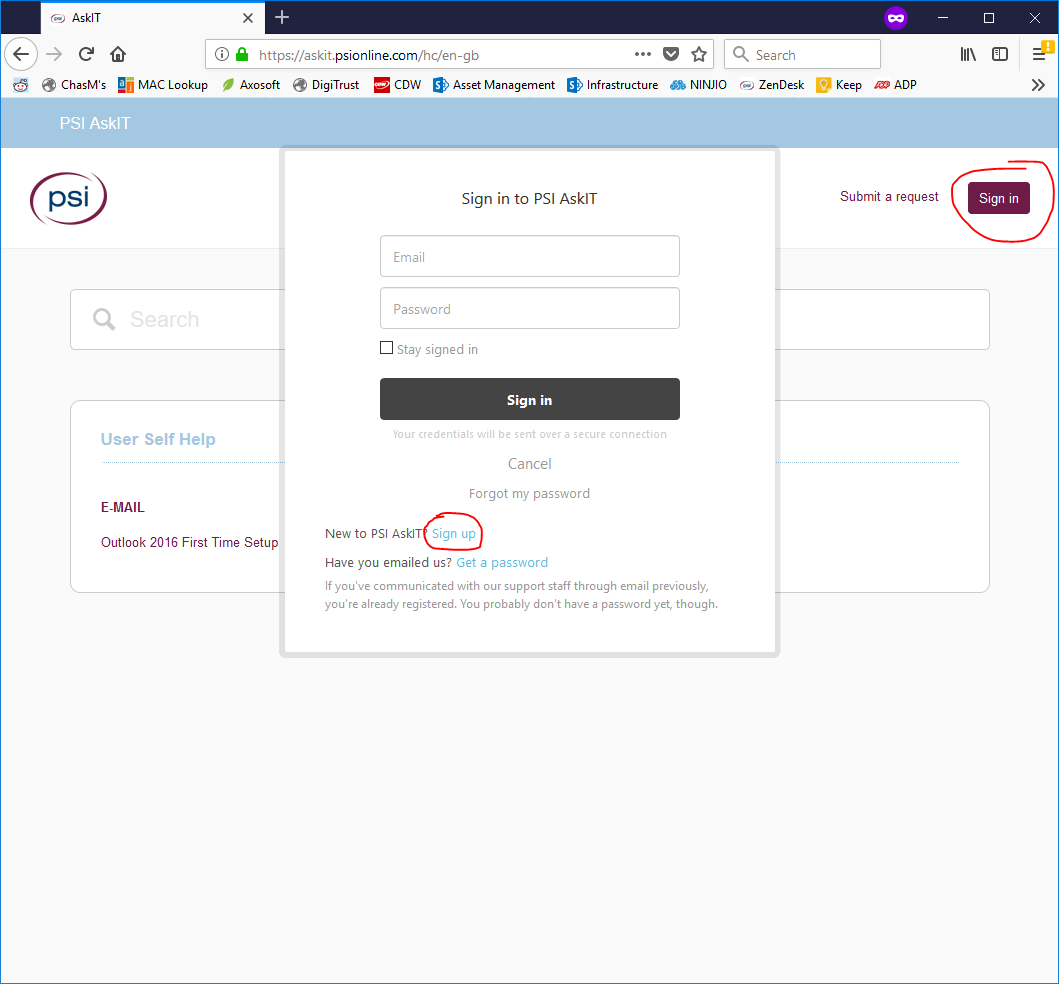
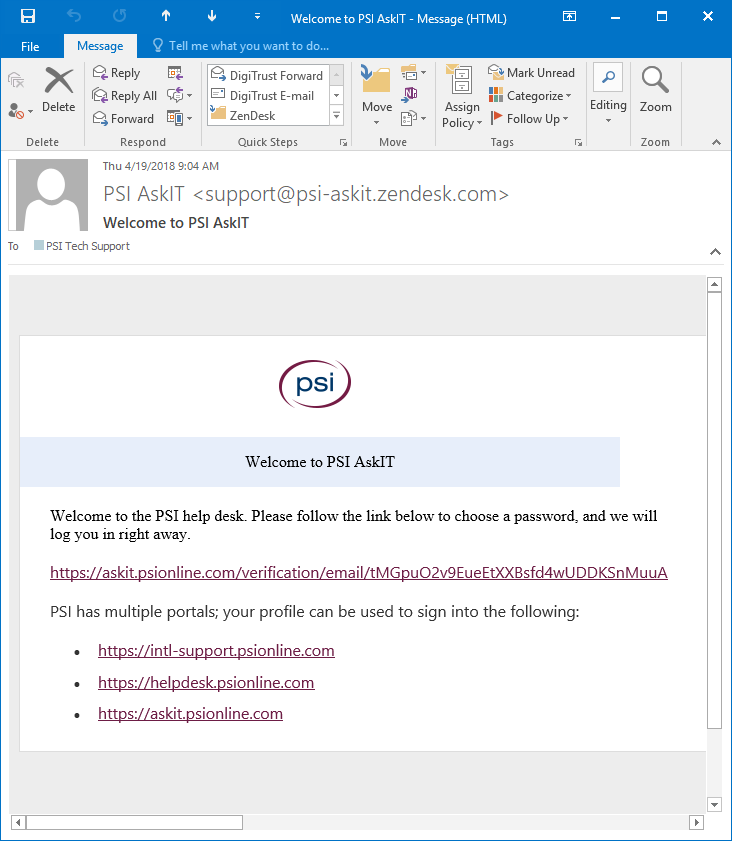
On the following screen, enter your full name and PSI e-mail address and click "Sign Up". You will then be prompted to verify your account via e-mail and create a password. Please follow the instructions in the e-mail. Once your account is created you can login with your e-mail address and the password you created.
Submit a ticket
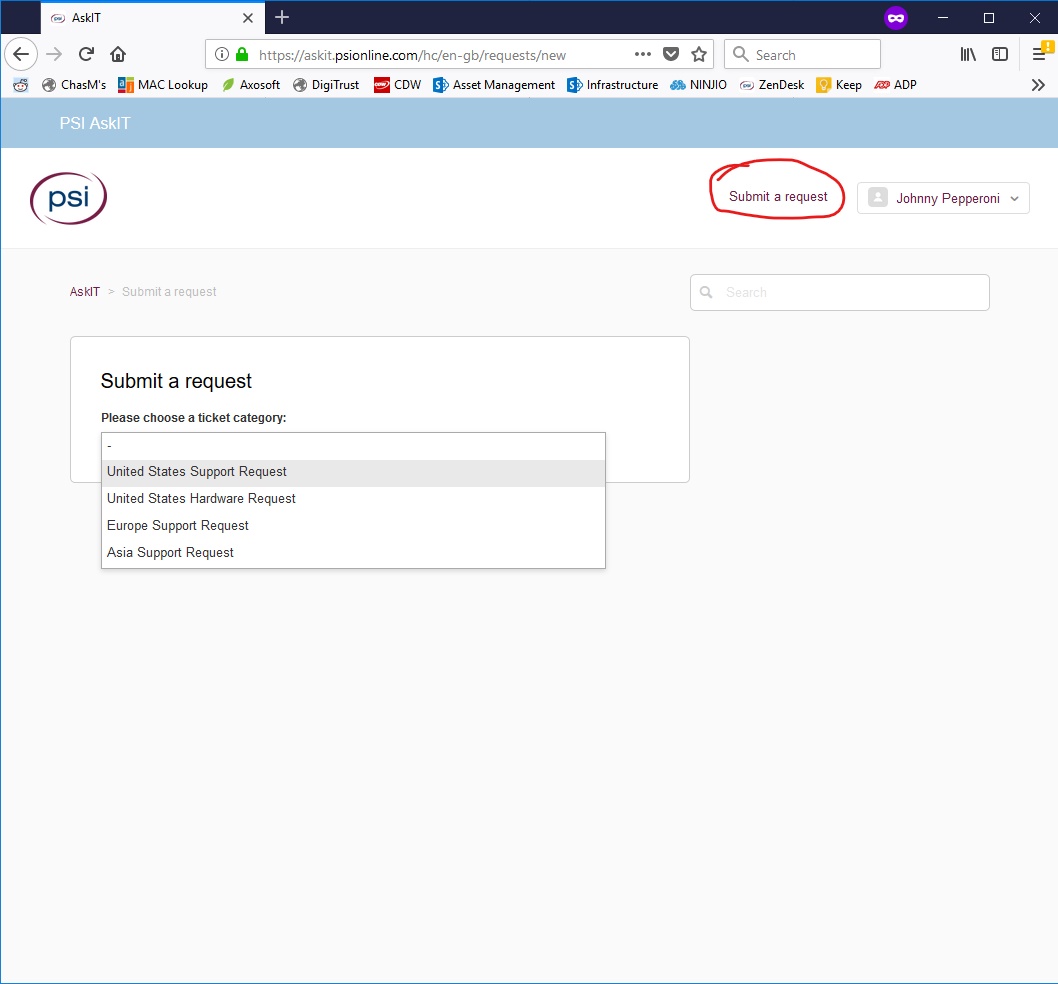
After creating an account, click "Submit a Request" in the top right and select "United States Support Request". You will then be taken to a form to submit your ticket.
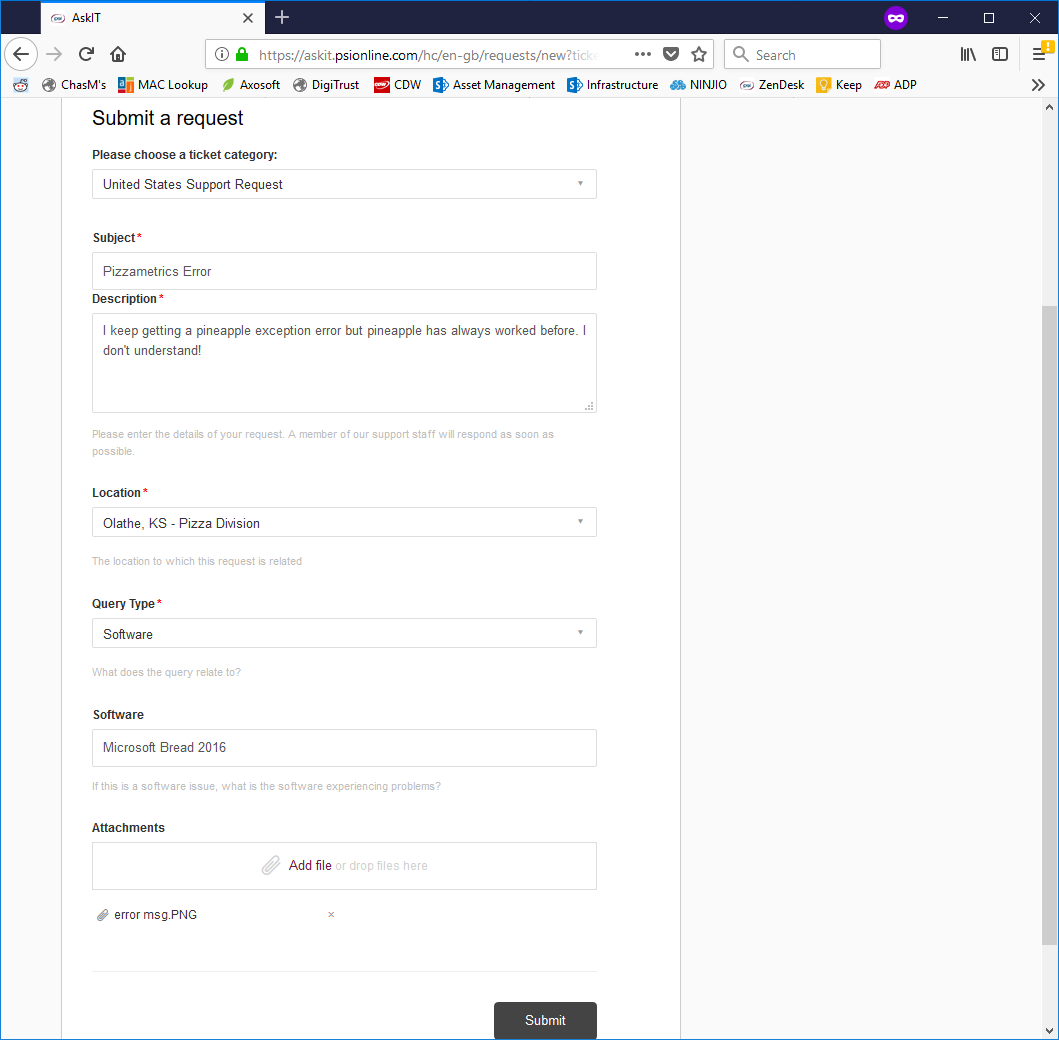
On the ticket form, please fill out all required fields. Please include a detailed description of the problem in the "Description" field and make sure that "Location" and "Query Type" are filled out correctly. A ticket that is incorrectly categorized or labelled with the wrong location might get sent to the wrong person or the wrong team entirely. In the attachments field you can attach an image of the error message, an error log, or any file or document you think might be relevant. After completing the form, click "Submit".
After submitting a ticket, you will receive an e-mail to confirm your request. Once the ticket is submitted you can view it in Zendesk to check on its status, see who is working on it, or follow up with a comment. You can view the ticket at any time by clicking on the link in the confirmation e-mail. If the person working on the ticket wishes to follow up with you, they can also leave a comment and you will receive a notification e-mail.

Sadly you have now made me hungry for pizza. -1